
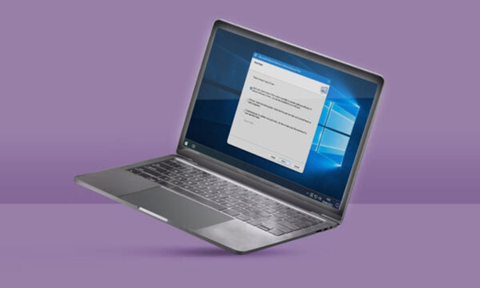
In today’s digital world, computers are constantly exposed to various security threats such as viruses, worms, spyware, and other malicious programs. To help protect Windows users, Microsoft provides a built-in utility known as the Microsoft Malicious Software Removal Tool (MRT tool). This powerful yet simple tool helps detect and remove specific widespread malware infections from Windows systems.
What Is the MRT Tool?
The Microsoft Malicious Software Removal Tool (commonly known as MRT) is a free security utility developed by Microsoft. It is designed to scan Windows computers and remove specific types of malicious software that are known to spread widely.
Unlike full antivirus programs, MRT is not intended to provide continuous protection. Instead, it focuses on removing active infections that are already present on the system.
The tool is automatically installed on Windows systems through updates from Windows Update, making it accessible to millions of users without requiring manual downloads.
Purpose of the MRT Tool
The main purpose of the MRT tool is to:
- Detect and remove widespread malware infections
- Help clean infected Windows computers
- Improve overall system security
- Support antivirus software by removing major threats
- Provide a free malware removal solution
MRT specifically targets common malware families that can cause serious harm to systems, networks, and personal data.
How the MRT Tool Works
The MRT tool works by scanning the system for known malware signatures. When malware is detected, the tool attempts to remove it and restore the system to a safer state.
Here’s how the process typically works:
- The tool scans files, folders, and system memory
- It compares detected items against a database of known malware
- If malicious software is found, MRT removes or quarantines it
- A report is generated showing the results of the scan
Microsoft updates MRT regularly to include detection for newly discovered threats.
Key Features of the MRT Tool
The MRT tool offers several useful features that make it effective and easy to use.
1. Free and Built Into Windows
One of the biggest advantages of MRT is that it comes pre-installed with Windows systems through Windows 10 and Windows 11 updates.
Users do not need to download additional software to use it.
2. Multiple Scan Options
MRT provides three main scan types:
Quick Scan
- Scans areas most commonly infected by malware
- Takes only a few minutes
- Suitable for routine checks
Full Scan
- Scans the entire system
- Takes longer but is more thorough
- Recommended if infection is suspected
Customized Scan
- Allows scanning specific folders or drives
- Useful when malware location is known
3. Automatic Monthly Updates
MRT is updated monthly through Windows Update. These updates ensure the tool can detect new malware threats and remain effective against evolving security risks.
4. Detailed Scan Reports
After each scan, MRT generates a report that includes:
- Scan type used
- Malware detected
- Actions taken
- Final scan status
These reports help users understand what threats were found and removed.
5. Easy-to-Use Interface
MRT features a simple interface that guides users through the scanning process. Even beginners can use the tool without technical knowledge.
How to Open and Use the MRT Tool
Using MRT is straightforward and requires only a few steps.
Step-by-Step Guide
- Press Windows + R on your keyboard
- Type mrt and press Enter
- The MRT tool window will open
- Click Next to start
- Choose a scan type:
- Quick Scan
- Full Scan
- Customized Scan
- Click Next to begin scanning
- Wait for the scan to complete
- Review the results and follow instructions if malware is detected
This process can help identify and remove known threats quickly.
Advantages of Using the MRT Tool
The MRT tool provides several benefits to Windows users.
1. Free Security Support
MRT is completely free and included with Windows updates, making it accessible to all users.
2. Trusted Source
Since MRT is developed by Microsoft, it is considered reliable and safe to use.
3. Helps Remove Serious Malware
The tool focuses on widespread threats that can affect many users.
4. Works Alongside Antivirus Software
MRT can complement antivirus programs such as:
- Microsoft Defender Antivirus
- Avast Antivirus
- Norton Antivirus
It does not interfere with other security tools.
Limitations of the MRT Tool
While MRT is useful, it does have certain limitations.
1. Not a Replacement for Antivirus
MRT only removes specific known malware. It does not provide real-time protection like traditional antivirus programs.
Users should always install full antivirus software for continuous security.
2. Limited Malware Detection Scope
The tool focuses on widely known threats and may not detect rare or newly developed malware.
3. Runs Periodically
Although MRT updates monthly, it does not automatically run full scans unless manually started.
4. No Real-Time Protection
Unlike modern antivirus tools, MRT does not monitor system activity continuously.
When Should You Use the MRT Tool?
You should use MRT in the following situations:
- When your computer behaves unusually
- If you suspect malware infection
- After downloading suspicious files
- When antivirus software detects a threat
- As a secondary malware removal check
Running MRT occasionally can improve system safety.
MRT vs Antivirus Software
Many users wonder how MRT compares to full antivirus programs.
| Feature | MRT Tool | Antivirus Software |
|---|---|---|
| Real-time protection | No | Yes |
| Malware removal | Yes | Yes |
| Scheduled scans | Limited | Yes |
| Automatic updates | Monthly | Frequent |
| Full protection | No | Yes |
MRT should be used alongside antivirus software, not as a replacement.
Checking MRT Scan Results
After running MRT, you can view the scan results using system logs.
Steps to View Logs
- Press Windows + R
- Type eventvwr
- Open Event Viewer
- Navigate to:
- Windows Logs
- Application
- Look for entries labeled MRT
These logs provide detailed information about scan results.
Tips for Using the MRT Tool Effectively
Here are some practical tips to get the most out of MRT:
- Run MRT after installing Windows updates
- Use Full Scan if malware infection is suspected
- Keep your antivirus updated
- Avoid downloading files from unknown sources
- Backup important data regularly
Following these tips can help maintain system security.
Is the MRT Tool Safe?
Yes, the MRT tool is safe to use because it is developed and distributed by Microsoft. It does not collect unnecessary personal data and operates securely within the Windows environment.
Users should only download MRT from official Microsoft sources to avoid counterfeit software.
Common Malware Types Removed by MRT
The MRT tool is designed to remove specific malware families, including:
- Worms
- Trojans
- Rootkits
- Backdoor programs
- Botnet malware
These threats can damage files, steal data, and slow down system performance.
Future of Malware Removal Tools
Cybersecurity threats are constantly evolving, and malware removal tools like MRT continue to improve. With advancements in artificial intelligence and machine learning, future versions of security tools may detect threats faster and more accurately.
Operating systems such as Windows 11 are already integrating advanced security features to enhance system safety.
Conclusion
The Microsoft Malicious Software Removal Tool (MRT) is a valuable security utility that helps detect and remove widespread malware from Windows systems. Although it is not a replacement for antivirus software, it serves as an effective supplementary tool that strengthens computer security.
With its easy-to-use interface, automatic updates, and reliable performance, MRT remains an important part of the Windows security ecosystem. By using MRT regularly along with trusted antivirus software and safe browsing habits, users can significantly reduce the risk of malware infections and maintain a healthy, secure computing environment.



3 thoughts on “MRT Tool: A Complete Guide to the Microsoft Malicious Software Removal Tool (MRT)”