
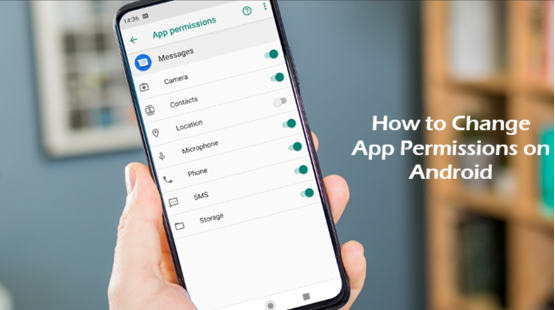
Android smartphones give users significant control over their privacy and security through app permissions. Whenever you install an application, it may request access to certain features or data on your device, such as your camera, contacts, location, microphone, or storage. Understanding how to change app permissions on Android can help protect your personal information while ensuring apps function properly.
In this guide, we will explain what app permissions are, why they matter, and how you can easily manage them on your Android device.
What Are App Permissions?
App permissions are rules that determine what information or device features an application can access. For example:
- A camera app needs permission to use your camera.
- A navigation app requires location access.
- A messaging app may need access to contacts.
- A voice recording app requires microphone permission.
Android allows users to control these permissions, ensuring apps only access what is necessary.
Why Managing App Permissions Is Important
Many apps request permissions to improve functionality. However, some apps may ask for access to data that is not essential for their primary purpose.
Managing app permissions helps:
- Protect personal privacy
- Reduce data collection
- Improve device security
- Prevent unauthorized access
- Control battery and background activity
Regularly reviewing permissions can help you maintain better control over your Android device.
Types of Android App Permissions
Android permissions generally fall into several categories:
Location
Allows apps to access your device’s location.
Examples:
- Maps
- Ride-sharing apps
- Weather applications
Camera
Allows apps to take photos and record videos.
Examples:
- Camera apps
- Video calling apps
- Social media platforms
Microphone
Allows recording of audio.
Examples:
- Voice recorder apps
- Video conferencing apps
- Virtual assistants
Contacts
Provides access to saved contacts.
Examples:
- Messaging apps
- Email clients
- Social networking apps
Storage and Files
Allows apps to read or save files on your device.
Examples:
- File managers
- Photo editors
- Cloud storage apps
Phone
Allows access to phone-related features such as call management.
Examples:
- Dialer apps
- Caller ID applications
How to Change App Permissions on Android
The exact steps may vary slightly depending on your Android version and device manufacturer, but the process is generally similar.
Method 1: Change Permissions for a Specific App
Follow these steps:
- Open the Settings app.
- Tap Apps or Apps & Notifications.
- Select the app you want to manage.
- Tap Permissions.
- You will see a list of permissions requested by the app.
- Enable or disable permissions as needed.
For example, if you do not want a social media app to access your microphone, simply turn off microphone permission.
Method 2: Manage Permissions by Category
Android also allows you to review permissions by category.
Steps:
- Open Settings.
- Tap Privacy.
- Select Permission Manager.
- Choose a permission category such as Camera, Location, or Contacts.
- View all apps that have access to that permission.
- Modify access for individual apps.
This method makes it easy to identify which apps have access to sensitive information.
Understanding Permission Options
Modern Android versions provide several permission choices.
Allow All the Time
The app can access the permission whenever needed, even in the background.
Commonly used for:
- Navigation apps
- Emergency location services
Allow Only While Using the App
The app can access the permission only when actively being used.
Recommended for:
- Camera apps
- Social media apps
- Photo editing tools
Ask Every Time
The app requests permission each time it needs access.
Useful for:
- Sensitive permissions
- Apps used occasionally
Don’t Allow
The app cannot access the requested feature or data.
Ideal when:
- Permission is unnecessary
- Privacy is a concern
How to Change Location Permissions
Location data is among the most sensitive information on a smartphone.
To modify location permissions:
- Open Settings.
- Go to Privacy.
- Tap Permission Manager.
- Select Location.
- Choose the desired app.
- Select:
- Allow all the time
- Allow only while using the app
- Ask every time
- Don’t allow
For most users, “Allow only while using the app” provides a good balance between convenience and privacy.
How to Revoke Permissions from Unused Apps
Recent Android versions automatically remove permissions from apps that have not been used for an extended period.
To check this feature:
- Open Settings.
- Tap Apps.
- Select an app.
- Look for Remove permissions if app isn’t used.
- Enable the option.
This feature helps improve security without requiring manual management.
Common Issues After Changing Permissions
Sometimes apps may not function correctly after permissions are disabled.
Examples include:
- Camera apps cannot take photos.
- Maps cannot determine your location.
- Messaging apps cannot access contacts.
- Voice recording apps cannot record audio.
If an app stops working properly, review its permissions and enable only the necessary ones.
Best Practices for Android App Permissions
To keep your device secure, follow these recommendations:
Review Permissions Regularly
Check app permissions every few months to ensure they still make sense.
Install Apps from Trusted Sources
Use official app stores and avoid downloading applications from unknown websites.
Grant Only Necessary Permissions
If an app requests access that seems unrelated to its purpose, consider denying the permission.
Update Your Device
Android updates often include privacy and security improvements that enhance permission controls.
Delete Unused Apps
Removing unused applications reduces security risks and minimizes unnecessary data access.
Android Privacy Features
Modern Android versions include advanced privacy tools such as:
- Permission Manager
- Privacy Dashboard
- Camera and microphone indicators
- One-time permissions
- Automatic permission reset
These features give users greater visibility into how apps access their data.
Conclusion
Learning how to change app permissions on Android is an essential part of maintaining privacy and security. Android provides powerful tools that allow users to decide which apps can access their location, camera, microphone, contacts, and other sensitive information.
By regularly reviewing permissions, granting access only when necessary, and taking advantage of Android’s privacy features, you can enjoy a safer smartphone experience while keeping control of your personal data. A few minutes spent managing app permissions can significantly improve both your privacy and device security.